Pages

24 February, 2016

Day 1 at ASB Unplugged: The GAFE Pre-Conference

Greetings from the hot hustle and bustle of Mumbai, India where I'm fortunate enough to be attending the American School of Bombay's Unplugged Conference.  For those of you who don't know, the American School of Bombay (ASB) has a world-renowned reputation for its commitment to innovations in teaching and learning, which include best practices on tech integration among other areas.

One of the key reasons why I'm here is to liaise with a group called the International Research Collaborative (IRC) with whom we've forged a partnership over the next two years to help us better measure and evaluate the impact of our Connected Learning Programme on teaching and learning.  The conference is a chance for partner schools to share their data, analysis and subsequent actions so that we may all learn from each other.  We haven't collected our survey data yet (coming in April 2016), but there is plenty to take away from other schools' experiences.

Aside from these meetings, there are also class visits, student-led exhibits, workshops and hands-on tech sessions taking place, all of which I'd like to share with you throughout the week.  I'll curate some of the best tools, resources, and ideas I've come across and share them with you through these blog posts.  If you read about something you'd like to explore in more detail, say a nifty new tool you'd like to try with your students, just drop me a line and I'll be happy to go in more detail when I return.

Aside from the blog posts, I've set up a public Google Drive Folder to dump photos and videos, rough notes, etc.  Feel free to check it out.  You can also follow the conference via its Twitter handle (@asbunplugged) and/or mine (@hackingb).

For now, let's get on with the highlights from the day's events:


Google Apps for Education (GAFE) Pre-Conference:


Day 1 was Pre-Conference day and I attended the Google Apps for Education (GAFE) sessions led by Chris Betcher (@betchaboy) and Ken Shelton (@k_shelton), two highly talented, and thus decorated teachers.  Here are some of the highlights:

Google MyMaps:  not just for Geography

Looking to have your students map out the famous battles in a war?  Perhaps you'd like them to visualise the migratory route of birds, butterflies, a group of people or a character in a novel?  Maybe you have a spreadsheet full of geographically related data you'd like translated onto a map.  

With Google MyMaps, you can do all of the above and more right from your Google Drive and as easily as creating a Google Doc.  What's more, maps can also be built collaboratively like any other Google file.

Give it a go by going to your Google Drive, selecting New, scrolling down to More and selecting Google My Maps.  Once there, you can drop pins in various locations, add pictures of the landscape (or of anything else for that matter), add lines and shapes over regions, map out routes and directions and add layers of different types of data.  The potential grows exponentially when you have spreadsheets of geographical data as it is easily imported and visualised on My Maps.  Here's an example of one I built today on levels of air quality in different parts of India.

My Maps has loads of potential across all curricular areas and I can't wait to explore this further across the school. 


Amazing Add-Ons to Docs, Sheets & Forms

One of the chief criticisms I hear about Google Docs, Sheets and other GAFE tools is that they lack functionality compared to Word, Excel and the rest of the Microsoft Office Suite.  

While this may be true, GAFE tools are more limited, they do provide a lion's share of the functionality students and teachers need for most work and allow users to build in those missing features, or completely different ones altogether, through a feature called Add-Ons.  Anyone who has tried Doctopus, Goobric, or Flubaroo knows the power of add-ons for simplifying and automating processes like providing targeted and timely feedback to students.

To explore and get add-ons, simply open any Google Doc, Sheet, or Form and find Add-Ons from menu bar at the top of the screen.  Select Get Add-Ons and start exploring.  


Some of those add-one we explored today that would be absolutely essential for any teacher and student:

Google Docs
  • EasyBib:  Simplifies the process of citing various sources in different citation formats.
  • Table of Contents:  Makes navigating long documents easier by generating a table of links that allow you to scroll back and forth between different sections of content.  As long as your document has headings and sub-headings, the Table of Contents feature will generate links to help you through a doc.
  • Speech Recognition:  Students may find it easier to get their ideas out on paper via speech-to-text tools.  Google Docs has a native Voice Typing feature built into the Tools tab on the menu bar, but the Speech Recognition add-on does a much better job of translating accents and transcribing foreign languages. 
Google Sheets
  • Autocrat:  Autocrat allow you to merge data from Google Sheets with any Google Doc and, if you have email addresses in your Google Sheet, send an email copy of the merged Doc either in a Doc or PDF format!  This is such a powerful tool with so many applications - for example, you could generate and send personalised certificates of achievement for your students.  

Check out more resources on how to use GAFE by visiting Chris Betcher's awesome site - SummitStuff.com

Lessons in Poor Social Media Use:  The Story of Justine Sacco

Lastly, we briefly reflected on our collective responsibility as teachers to educate students on the importance of projecting healthy, positive images of ourselves online and the consequences of poor online communications.  It wasn't a huge focus of the Pre-Conference, but I know that social media use and digital footprints are important at our school and thus why I'm sharing the following story. 


Above is a link to an article about Justine Sacco, ironically enough a communications director who thought it humorous to tweet racist remarks about others while travelling on a business trip.  Her tweets went viral shortly after she posted them.  Over the course of 4 hours while she was in the air travelling to her destination, her tweets reached millions of people on twitter and got picked up by national news agencies.  By the time she touched down, not only was she terminated by her employer, she was instantly met with throngs of journalists and an angered public.  The story also highlights how difficult its been for her to find other employment and rebuild any credibility since the incident.  

Stories like this should cause us to ban or discourage social media use, because after all, there is tremendous capacity for these tools to connect us, to liberate us, to provide us a voice, and ultimately to do some real good in the world.   That said, Justine's story reinforces our responsibility to teach students and our own children how to use social media in ways that are safe, sensible, responsible and ethical ways.  

17 November, 2015

What Connected Learning Is and Is Not

Like many other schools around the globe, ours is in the thick of implementing a 1:1 program.  We don't actually call it that now.  Thankfully we realised that "1:1" wasn't particularly learning-focused and we opted to call our initiative the Connected Learning Programme which places more emphasis on what we want to be doing with the devices - learning - rather than on the tech itself.    

With a new programme title in place, we've naturally set-forth to answer the question:  What is Connected Learning?  


What Connected Learning is Not

In trying to answer these questions, it helped to think about what Connected Learning isn't before trying to define what it is.  All of our staff are quite certain that it isn't merely placing tech into the hands of children and learning magically happening.  It doesn't happen by virtue of handing a child an iPad, just as much as it didn't happen simply by placing an interactive whiteboard in a classroom or wheeling around a TV cabinet.  

If Connected Learning were anything like that, we wouldn't be doing it.

Rather, it's what you do with the tech that matters.  A pencil is just a pencil until its owner channels ideas, imagination, creativity and vision down the barrel to write the next great novel or sketch out the next great masterpiece.  One requires an understanding and mastery over what good writers and artists do while also having mastery over the physical tool itself, knowing how to physically write and apply techniques to draw.  None of these happen by virtue of giving someone a pencil and this is no different with any other technology.  

Good teaching matters.  

But, defining Connected Learning remains difficult.  It involves technology, yes.  And it involves good teaching, yes.  But how does it all fit together?  What's the relationship between technology and good teaching practise? 

It's in that complex interplay where I believe a definition of Connected Learning lies.

Discovering a Definition through Coaching

This all got me thinking about the coaching process we work through with colleagues when integrating technology.  We always start with a focus on the learning.  Be it some factual or conceptual knowledge, a timeless skill, a particular literacy, or big understanding, knowing what we want our students to achieve drives the types of tools we select - digital and/or analogue - and how they'll be used in a lesson or unit.  It seems obvious to start there, but so many teachers try to make the tech fit because of some cool feature it offers rather than letting purpose and context for learning drive the selection process.  

After co-planning, we set out to co-teach.  Either I, or my integrator partner in crime, Louise, take a lead while the teacher works to supports the students, or, vice versa as a teacher's skill level develops.  Regardless of who is doing what, one of us is collecting evidence about whether students are learning what we hoped they would.  We ask students questions, analyse work samples and collect and record other forms of data to reflect upon afterwards.  It's a process we're increasingly using called Looking for Learning and the observer's template can be found here

Following the lesson, we sit down to determine two things based on the evidence collected:  
  • Did learning happen or not and how do we know?
  • What were the factors that helped or hindered learning?  
It's the resulting conversation over the latter question where I feel we get closer to a working definition of what Connected Learning is because reflections there lead us to think critically about those complex relationships I mentioned above; relationships between things like instructional strategies used, the design of the task, the delivery of curriculum content, the type of technology used and how it was integrated.


This is where a lightbulb goes off for me:  types of technology used, methods of using tech, pedagogical practices, curriculum content - hello, that sounds like SAMR and TPACK at the door.  Could that be Connected Learning at the centre of that venn diagram or at the top of that mountain?  

The SAMR model (right) was developed by Dr. Ruben Puentedura as a way for teachers to think about and evaluate their technology use.  The TPACK model (left) helps teachers understand the interplay and relationships between what it is we want students to learn (CK), the tools we have at our disposal to support learning (TK) and the implications both of these areas have on our approach to teaching and learning (PK).  Illustration by Ben Hacking.

Connected Learning:  The Height of SAMR & the Heart of TPACK

For those new to SAMR and TPACK, both represent models for thinking about teaching and learning with technology.

Dr. Ruben Puentedura developed the SAMR model as a means of thinking about how technology is used.   At it's simplest level, substitution, technology can be used as a direct substitute for another tool with no functional change or improvement to the task at hand.  The best example I can cite is Alan November's iPad or laptop likened to a $1,000 pencil - using it to simply take notes where pen and paper would suffice.  At the highest level, redefinition, technology enables new opportunities for learning not previously possible without the technology.  This is where we see students using tech to connect and collaborate with other learners and subject-matter experts around the world via Skype, code their own iPad apps to solve a problem or improve a process, or to do tremendous social good by harnessing the power of social media.

For an excellent introduction to SAMR, click the video link below.


As my sketch above shows, I see Connected Learning as being at the height of the SAMR framework - as learning not previously possible without the presence of these tools.  That said, I have to be careful not to associate that redefined learning experience as caused by the technology itself.  Remember, good teaching matters.  SAMR helps us to assess what technology allows us to do, but it does not help us with how we do it - the good teaching that makes Connected Learning possible.  

Take for instance a Virtual Learning Environment (VLE) like Moodle or Google Classroom.
Technologies like these can and do function as mere substitutes for noticeboards or filing cabinets of resources.  That said, if optimally used, they could redefine the way curricular content knowledge is learned and extend the time and space of a teacher's classroom.  In essence, platforms like these could enable new pedagogical approaches such as flipped and blended learning to happen.

Same tool, different uses, different possibilities.

SAMR is good at highlighting these differences in use, but does little to help us explain how we climb that ladder to new possibilities and truly make connected learning happen.  This is where I see TPACK as helpful.

For those new to TPACK, it represents another framework for thinking about learning in the presence of technological tools and helps explain how one moves up the rungs of the SAMR ladder.  The TPACK model illustrates the types of knowledge a teacher brings together to teach for effective learning, including curricular content knowledge (CK), pedagogical knowledge of how to teach (PK), and knowledge of technological tools to support learning the curriculum (TK).  For a helpful introduction to TPACK, see the video below from Common Sense Media.


It's at the heart of this venn diagram where I see the essence of what Connected Learning is:

Connected Learning is student learning achieved through sound pedagogical practice supported and/or enabled by appropriate, relevant, authentic and/or purposeful use of technology.

Thinking about all the wonderful approaches to teaching and learning made possible by technological tools:  games-based learning, flipped learning, blended learning, and more - these and many other approaches are all made possible by careful planning and appropriate use of powerful digital tools.

Tell me what you think.  Feel free to comment below.  As I mentioned, we are on a journey to define what Connected Learning is and what it looks like in practice, and this post represents my some of my own thinking around the subject.  I'd be interested to hear other peoples thoughts.


09 February, 2015

Storytelling in a Digital Age


Nothing brings people together more than the act of telling stories.  For as long as we’ve existed, people have gathered around campfires, cave walls, theatre stages and more to share and listen to stories with each other.  It is the essence of what it means to be social beings and that much remains constant.  What has changed however, is how we tell stories.  


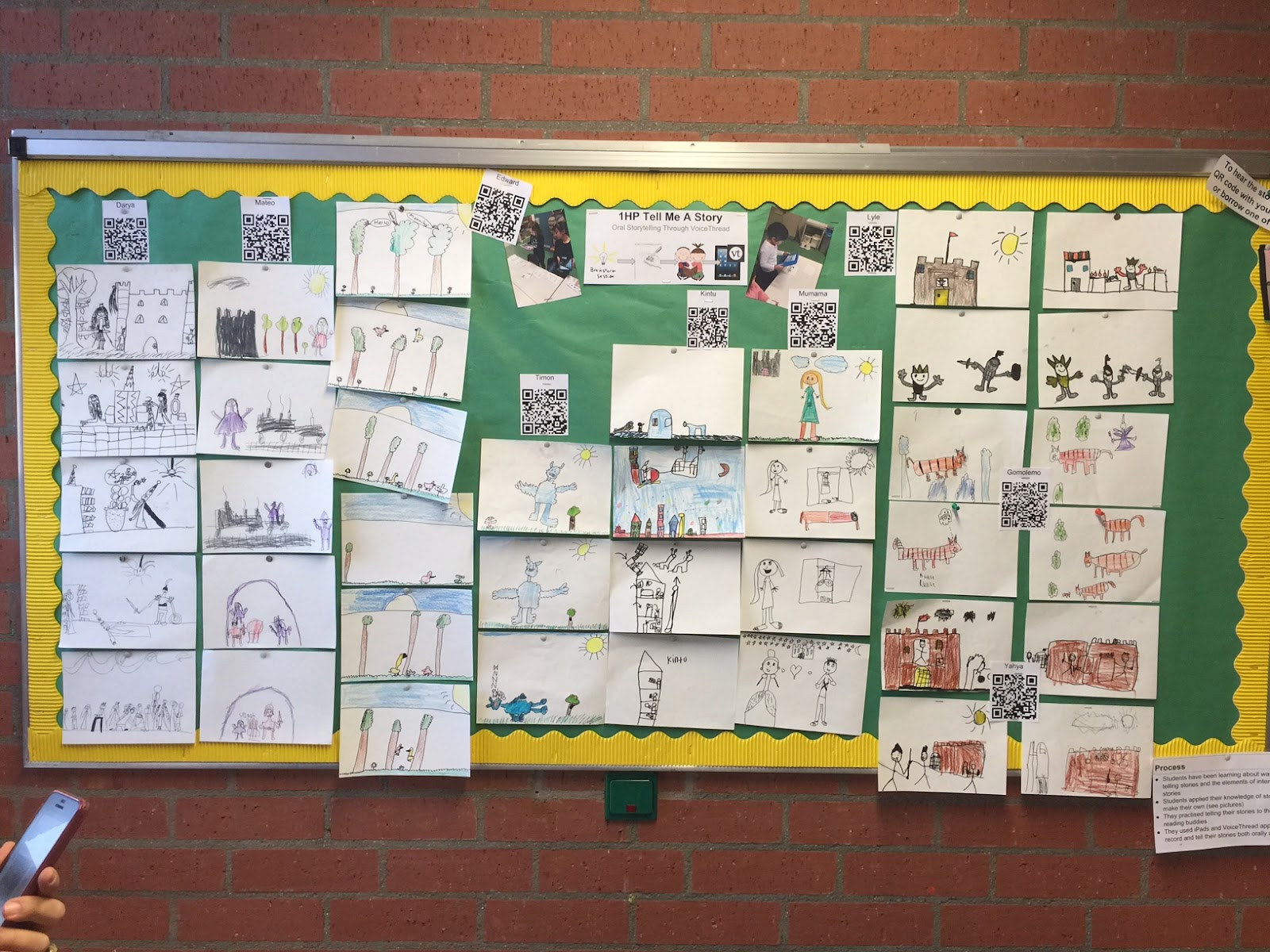
The age of highly visual media driven by technology has fundamentally altered what it means to “write,” “tell,” and “read” a story.  As our Grade 1s have been finding out, there is a whole world of storytelling that exists beyond books in the world of film and animation, art and oral forms.  Further, it exists beyond the physical library, accessible anytime, anywhere in cloud-based environments such as Tumblebooks (see login details below).  In the cloud, storytellers can produce and share their ideas in ways that are more dynamic and multimodal thus making stories more engaging and accessible to all “readers” regardless of age, language and level of literacy.  

As content has become more accessible to students, so too have the tools used to “write” and share stories.  Nowhere is this more apparent than in our Grade 1 corridor, where you will see some examples of students using digital tools to help them express their stories to you.  Now and in the coming weeks, we invite you to see how tools like tools like the iPad and apps like VoiceThread and I Can Animate are changing what it means to “write” and “read” stories.  If you’re armed with a smartphone, I invite you to download two free apps - QR Code Scanner and the Voicethread app to view examples of these stories on the go.  You can also click this link to view a webpage of these stories.

IMG_1179.JPG

16 August, 2014

Look out Moodle. Here Comes Google Classroom.

As Google launches the much hyped Classroom Learning Management System (LMS), I'm reminded of am experience I had a few years ago when my school sat down to decide which LMS we would use - or VLE's as we called them back then.

Speaking from my limited experience as a newly minted classroom teacher, I delivered a proposal to adopt Google Apps for Education (GAFE) which you can see below.  I'd heard of Moodle and Edmodo before, but hadn't the experience to advocate for either of them.  Back then, GAFE didn't offer the LMS experience per se, but did offer the building blocks and essential tools to perform many of the same functions.  Through a handy dandy mix of Google Docs (now rolled into Drive), Sites, Blogger and other core apps, teachers could easily create and curate course materials, assignments and more, deliver them online to students, and facilitate discussions in the cloud.  

GAFE was my toolbox and it was stocked with tools that were carefully crafted to do their respective "thing" really well - as opposed to many things half as well (ahem...yes, I'm talking to you Moodle - get back in your corner).  


If I needed to design a webquest experience and share a bunch of links with a group of students and have them write responses to questions related to their findings, Google Sites would do the trick.  If I wanted to check for understanding after a lesson, I could deliver a quick, self-marking exit ticket through Google Forms and have the results automatically fed back to Sheets.  How's about collecting anecdotal notes on my students from specialist teachers through Google Docs so I can build a fuller picture of my kids in contexts I don't see them in. Let's not forget collaborative slideshow presentations with Google Slides. Oooh, and let's embed those back into our class site.  How's that for interoperability...and so intuitive to boot.  

Overall, GAFE provided easy to use creation and sharing tools that allowed me to take my classroom to the cloud, thus extending the time and space of learning for my students. 

In the end, our school went with a marriage between Moodle and GAFE (Moogle as one of my colleagues calls it).  Moodle was chosen because it seemed to be the silver bullet solution to a lot of issues.  It fulfils the need to have all courses from K-12 created, housed, and accessed in one place.  It also became the go to point for administrative and curriculum documentation, and communications to staff and parents.  It is, at the most basic level, like a monolithic filing cabinet where anyone can go to find the courses, communications and documentation they need.  At a more advanced level, Moodle should be the virtual space to connect with other members of the community.  Teachers and students are expected to use the forum tools to converse and collaborate in the cloud, use the assignments feature to, well, post and submit assignments, and use features like Quizzes and Gradebook to collect assessment data.  Moodle is supposed to be the online home for everyones classes while GAFE should only be used as a set of productivity tools.  In short, all roads lead to Moodle.

As teachers and students become more familiar with GAFE however, all roads seem to be running increasingly through Moodle.  In fact, had the IT Department and Senior Leadership not tied the proverbial knot between Moodle and GAFE via a Single-Sign-On authentication through Moodle, I'm convinced teachers and students would be paving their own roads around the big orange M altogether.

Why is that?  For one thing, it is Moodle's biggest selling point - its flexibility - which has become, at least in our school, it's biggest downfall in terms of lack of uptake.  Moodle appeals to many because of its Mr Potato Head configurability.  Provided you know CSS, can access and install plugins, navigate your way through the innumerable configuration options (codified in unintuitive language) and, and, and...you can make Moodle work for you and your students and perhaps your school.

But from the position of a Digital Coach and Integrator charged with the task of upskilling staff and selling Moodle, I can tell you that this is way beyond what much of our teaching staff wants and is capable of doing at the moment.  There is too much choice and too many configurations for each activity and resource to be set up.  Oh, and doing the pretty stuff like formatting, design and layout on that tiny HTML editor?  It's a pig! I know pretty colours and designs aren't necessarily the "stuff" of education, but don't underestimate its importance to teachers and students - especially in Primary School grades.  Ah, and don't get me started on how Moodle renders on mobile devices...we could be here for a while.

All in all, Moodle is just a bit too clunky, a bit too multi-step, and not intuitive enough.  I'm not doing myself any favours here seeing as we've hitched our cart to this big orange horse and I'm supposed to be its advocate, but it is the God's honest truth.  It's my blog and I'll cry if I want to, cry if I want to...

Bring on Google Classroom...


If Google Classroom is anything like the suite of tools in GAFE, it will succeed as a learning platform where Moodle fails. It will be limited in its options and intuitive in the execution of its functions, yet flexible enough for more advanced users to make more complicated configurations.  Users like GAFE tools because they have straight forward icons, menu tabs and commands.  The interface is clean, simple, and easy to use.  Applying this to the Classroom LMS will lead to much quicker uptake.

Of course the other more pinnacle piece here is the synergy between Classroom and Drive.  The most obvious function being touted now is that a teacher can create an assignment in Drive, share it with students via Classroom and have it submitted back through Classroom for marking and feedback.  Much like how you can Insert from Drive in your Google Site, Classroom will have that same interoperability.  Teachers can also post links to sites and harness content from YouTube in the course.  I'm assuming that quizzes via Forms, online collaborations through Google Hangouts, and blogging features are all part of the Classroom LMS now, if not, in the near future.  And that's another thing...Classroom LMS will have a similar advantage like other Apps in the GAFE suite - an army of software developers and programmers working on experimental extensions and add-ons which eventually get incorporated after beta testing.

Perhaps the next step is for Google to do the one thing Moodle does now already which is to house all those Google Classrooms in a walled garden.  I'm sure they have Google School set to roll down the pipeline at some point, but only after classroom goes through its paces.

For now, I'm left in a precarious position:  continue a forced integration of a platform I know is doomed for failure or fight for the platform I know will seize the day.  Ultimately that decision will be informed by how the platforms help or hinder learning and teaching.  At the moment I get this all too familiar message when I try to explore Classroom from our domain:


Something tells me I have to log into the Admin Panel, flip on the switch, and start a trial...